AFAQY Knowledge Base
    Units Management
    Units Management

    Units Management

    đź“– Afaqy Knowledge Base / AVL / Units / Units Management

    CONTENTS
    ‣
    Introduction
    • About Afaqy
    • AVL Pro
    ‣
    Technical Requirements
    • Recommended Web Browsers
    • Hardware Specifications
    • Internet Connection
    ‣
    Quick Start
    • Account Setup
    • Logging In
    • Resetting Password
    • Glossary
    ‣
    Map
    • Map Navigation
    • Map Tools
    ‣
    Monitoring
    • Monitoring List
    • Monitoring Tools
    • Monitoring Fields
    ‣
    Dashboard
    ‣
    Statistics
    • Overview
    • Accessing Statistics
    • Filters & Controls
    • Units
    • Status
    • Others
    • Activity & Reporting
    • Exporting Data
    • Related Pages
    ‣
    Charts
    • Chart Types
    • Creating a chart
    • Chart Tools
    ‣
    Geofences
    • Overview
    • Purpose
    • Page Components
    • Display Modes
    • Unit Count Indicator
    • Actions
    • Best Practices
    ‣
    Reports
    • Reports Tab
    • Templates Tab
    • Schedules Tab
    ‣
    Report Categories Breakdown
    • Summary Reports
    • Vehicle Activity Reports
    • Driving Quality Reports
    • Zones Activity Reports
    • Sensors Activity Reports
    • Other Reports
    ‣
    Units
    • Selecting Columns
    • Creating a Unit
    • Creating a Sensor
    • Creating a Command
    • FAQs
    ‣
    Units Management
    • Importing Units
    • Accessing Units
    • Unit Groups
    • Unit Shared Groups
    • Exporting Units
    • Deleting Units
    • FAQ
    ‣
    Messages
    • Permissions
    • Tracing Messages
    • Table View
    • Graph View
    • Common Tools
    • Troubleshooting
    ‣
    Second By Second
    • Permissions
    • Scope & Limits
    • Tracing Second by Second
    • Table View
    • Graph View
    • When to use
    • Troubleshooting
    ‣
    Tracking
    • Tracking Fields
    • Generating a track
    • Tracking Tools
    ‣
    Multi-Unit Follow
    • Screen List
    • Maps
    ‣
    Users
    • Selecting Columns
    • Adding a user
    • Users Management
    • Roles & Permissions
    • User Activity & Auditing
    • Best Practices
    • Permissions & Visibility
    ‣
    Geofences
    • Geofences List
    • Markers List
    ‣
    Geofences Management
    • Importing Geofences
    • Accessing Geofences
    • Geofences Groups
    • Exporting Geofences
    ‣
    Customers
    • Selecting Columns
    • Adding a customer
    • Customers Management
    ‣
    Resources
    • Trailers
    • Drivers
    • Events
    • Status
    • Custom Fields
    ‣
    Settings
    • Protocols
    • Packages
    • Roles & Permissions
    ‣
    Audit Log
    • Overview
    • Purpose
    • Scope of Logged Activities
    • Page Components
    • Event Details
    • Export & Retention
    • Access Control
    • Best Practices

    The main objective of creating a digital replica for the unit on the AVL system is to enable full control with all ease. This section allows you to manage units by performing various tasks, such as importing new units, assigning them to users, creating unit groups, and more.

    Importing Units

    To streamline the process and avoid creating units manually one by one, users can import them in bulk by following these steps:

    ‣
    Add new units
    1. Click the icon located in the units table header.
    image
    1. Select Import to add new units, then click Next.
    2. Click the Download Template button to download the template in Excel format.
    image
    1. Fill in the required data following the template structure, then save the file.
    2. Upload the completed Excel file and click Proceed to Validate.
    ‣
    Fill existing units
    1. Click the icon located in the units table header.
    image
    1. Select Import to fill in existing units, then click Next.
    2. Click the Download Template button to download the template in Excel format.
    image
    1. Fill in the missing data following the template structure, then save the file.
    2. Upload the completed Excel file and click Proceed to Validate.

    Accessing Units

    To manage user access rights to units and enable users to utilize AVL capabilities, the admin has two methods:

    ‣
    Access Tab
    1. For a new unit, click the + icon, then navigate to the Access tab. For an existing unit, click the icon in the corresponding unit's row and proceed to the Access tab.
    2. Select the users to whom you want to grant access.
    image
    ‣
    Extra Icon
    • Assigning To Users
    1. Click the Extra icon located in the specified unit's Actions field, then select the Assign To Users icon .
    2. Select the user(s) to whom you want to grant access, then press the Assign Users button.
    3. image
    • Unassigning From Users
    1. Click the Extra icon located in the specified unit's Actions field, then select the Unassign From Users icon .
    2. Select the user(s) from whom you want to remove access, then press the Unassign Users button.
    image

    Unit Groups

    Users can organize created units into groups based on specific criteria. Groups also enable admin users to assign access rights to multiple units simultaneously. However, the group creator must have access rights to all units included in the group.

    Creating Groups

    To create a unit group, perform the following steps:

    1. Switch to the Unit Groups tab.
    2. Click the + icon.
    3. Specify the group name.
    4. If necessary, select the Parent ID of the group from the drop-down list.
    5. In the left list, select the units you want to add to the group. To quickly search for them, use the dynamic filter above the list.
    6. Move the selected units from the left list to the right one using the > icon.
    7. image
    8. If necessary, configure the Access tab.
    9. Click Save to finalize group creation.

    The newly created group is automatically added to both the list of all unit groups and the units list in the Monitoring tab of the associated account. You can use the dynamic filter to search for groups.

    image

    Next to each group name, the number of units assigned to it is displayed. To view the list of units, click the icon next to the group .

    Using Groups

    Unit groups enable more efficient reporting by organizing multiple units into logical groups, simplifying data analysis and report generation. By grouping related units, you can generate comprehensive reports for an entire group instead of handling individual units separately. This feature enhances clarity and saves time when managing large datasets.

    image

    Unit groups also allow you to streamline access management by granting users access to multiple units at once, rather than assigning / unassigning units individually. To do this, follow these steps:

    ‣
    Assigning To Users
    1. Ensure you are in the Unit Groups tab.
    image
    1. Click the Extra icon located in the specified unit group's Action field, then select the Assign To Users icon .
    2. Select the user(s) to whom you want to grant access, then press the Assign Users button.
    image
    ‣
    Unassigning From Users
    1. Ensure you are in Unit Groups mode on the Units tab.
    image
    1. Click the Extra icon located in the specified unit group's Action field, then select the Unassign From Users icon .
    2. Select the user(s) from whom you want to remove access, then press the Unassign Users button.
    image

    Unit Shared Groups

    Unit Shared Groups provide a way for external users to access unit groups, catering to various organizational needs. For instance, governmental institutions that require oversight of specific unit groups can be granted View Only access when creating a Unit Shared Group to monitor movements without making changes. Similarly, fleet owners who rent out their units often need to assign these units to different users while retaining oversight of their fleet’s activity. In such cases, the Inherit User Permission option should be selected, ensuring that the assigned users’ permissions align with the fleet owner’s requirements.

    image

    In order to create shared unit groups, you must log in to the AVL with an Afaqy Employee account and perform the following steps:

    1. Switch to Shared Groups mode on the Units tab.
    2. Click the + icon.
    image
    1. Specify the Shared Group Name in the Group Name field.
    2. Enter the Displayed Owner Name and select the From Owner from the dropdown list.
    3. Enter the Displayed Tenant Name and select the To Tenant from the dropdown list.
    4. Use the search fields to select the units to be added to the shared group and move them to the appropriate list using the arrow buttons.
    5. Choose the Permission level:
      • View Only: If the external user requires read-only access.
      • Inherit User Permission: If the external user needs permissions matching the tenant's existing access.
    6. Click Save to finalize the shared group creation.

    Exporting Units

    To support efficient data management and analysis, users can easily export the data of units, unit groups, or unit shared groups by following these steps:

    1. Click the icon located in the table header of the respective tab.
    2. Select your desired export format, such as XLS, XLSX, or CSV, depending on your analysis needs.

    Deleting Units

    Users can access deleted Units, Unit Groups, or Shared Groups by clicking the List Trashed icon in the table header of the respective tab. From there, items can be permanently deleted or restored using the Delete or Restore icons available in the action column of each item.
    FAQs

    đźš—
    How do I add a unit to a group?
    ‣
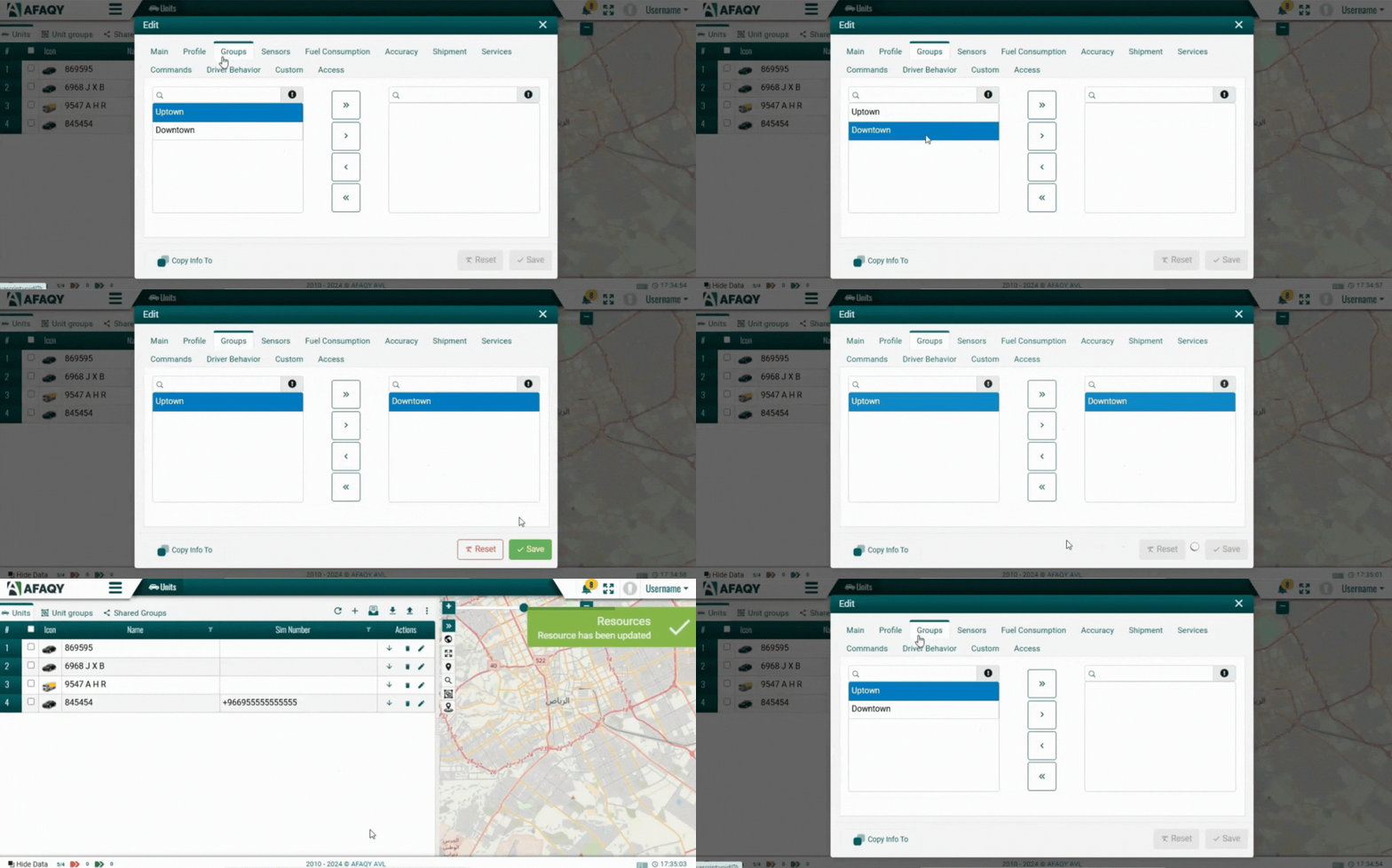
    Ensure a unit group is created, then follow these steps:
    1. For a new unit, press the + icon, then click on the Groups tab. For an existing unit, press the icon in the specified unit's row, then navigate to the Groups tab.
    2. Select the desired group from the left list and move it to the right list using the arrow buttons.
    image
    1. Click Save to confirm your changes.
    ℹ️
    How do I add a custom field for unit-specific information?
    ‣
    Custom Fields show in reports and Monitoring. To create one, follow these steps:
    1. Go to the Resources section and select the Custom Fields tab.
    2. Click the + icon to add a new custom field.
    image
    1. Specify the Custom Field Type (e.g., General, Date, Email, Phone).
    2. Enter the Custom Field Key (name of the custom field) and its Default Value.
    3. Click Save.
    4. Navigate back to the Units section.
    5. Press the icon in the row of the specified unit and go to the Custom tab.
    6. Click Add New Custom Field and select the custom field you created.
    image
    1. Click Save.
    🪪
    How can I assign a driver to a unit?
    ‣
    This feature is available to admin users only.
    1. Click the Extra icon located in the specified unit's Action field, then select the Bind driver to unit icon .
    2. Select the driver you wish to assign by pressing the Bind icon located in the specified driver’s Action field.
    image
    đźš›
    How can I bind a trailer to a unit?
    ‣
    This feature is available to admin users only.
    1. Click the Extra icon located in the specified unit's Action field, then select the Bind trailer to unit icon .
    2. Select the trailer you wish to bind by pressing the Bind icon located in the specified trailer’s Action field.
    image
    🏷️
    How do I set the status for a unit?
    ‣
    This feature is available to admin users only.
    1. Go to the Resources section and select the Status tab.
    2. Click the + icon to add a new status field.
    3. Define the Name and Code of the status.
    4. Click Save.
    5. Navigate back to the Units section.
    6. Click the Extra icon located in the specified unit's Action field, then select the Set Status icon .
    7. Select the status you wish to allocate by pressing the Bind icon located in the specified status’s Action field.
    image
    icon
    Units
    icon
    Messages