AFAQY Knowledge Base
    Geofences
    Geofences

    Geofences

    📖 Afaqy Knowledge Base / AVL / Geofences

    CONTENTS
    ‣
    Introduction
    • About Afaqy
    • AVL Pro
    ‣
    Technical Requirements
    • Recommended Web Browsers
    • Hardware Specifications
    • Internet Connection
    ‣
    Quick Start
    • Account Setup
    • Logging In
    • Resetting Password
    • Glossary
    ‣
    Map
    • Map Navigation
    • Map Tools
    ‣
    Monitoring
    • Monitoring List
    • Monitoring Tools
    • Monitoring Fields
    ‣
    Dashboard
    ‣
    Statistics
    • Overview
    • Accessing Statistics
    • Filters & Controls
    • Units
    • Status
    • Others
    • Activity & Reporting
    • Exporting Data
    • Related Pages
    ‣
    Charts
    • Chart Types
    • Creating a chart
    • Chart Tools
    ‣
    Geofences
    • Overview
    • Purpose
    • Page Components
    • Display Modes
    • Unit Count Indicator
    • Actions
    • Best Practices
    ‣
    Reports
    • Reports Tab
    • Templates Tab
    • Schedules Tab
    ‣
    Report Categories Breakdown
    • Summary Reports
    • Vehicle Activity Reports
    • Driving Quality Reports
    • Zones Activity Reports
    • Sensors Activity Reports
    • Other Reports
    ‣
    Units
    • Selecting Columns
    • Creating a Unit
    • Creating a Sensor
    • Creating a Command
    • FAQs
    ‣
    Units Management
    • Importing Units
    • Accessing Units
    • Unit Groups
    • Unit Shared Groups
    • Exporting Units
    • Deleting Units
    • FAQ
    ‣
    Messages
    • Permissions
    • Tracing Messages
    • Table View
    • Graph View
    • Common Tools
    • Troubleshooting
    ‣
    Second By Second
    • Permissions
    • Scope & Limits
    • Tracing Second by Second
    • Table View
    • Graph View
    • When to use
    • Troubleshooting
    ‣
    Tracking
    • Tracking Fields
    • Generating a track
    • Tracking Tools
    ‣
    Multi-Unit Follow
    • Screen List
    • Maps
    ‣
    Users
    • Selecting Columns
    • Adding a user
    • Users Management
    • Roles & Permissions
    • User Activity & Auditing
    • Best Practices
    • Permissions & Visibility
    ‣
    Geofences
    • Geofences List
    • Markers List
    ‣
    Geofences Management
    • Importing Geofences
    • Accessing Geofences
    • Geofences Groups
    • Exporting Geofences
    ‣
    Customers
    • Selecting Columns
    • Adding a customer
    • Customers Management
    ‣
    Resources
    • Trailers
    • Drivers
    • Events
    • Status
    • Custom Fields
    ‣
    Settings
    • Protocols
    • Packages
    • Roles & Permissions
    ‣
    Audit Log
    • Overview
    • Purpose
    • Scope of Logged Activities
    • Page Components
    • Event Details
    • Export & Retention
    • Access Control
    • Best Practices

    Geofences are virtual boundaries created on the map to define specific zones relevant to fleet operations. They help establish clear areas where vehicles are allowed or restricted, offering greater control over movement and operational boundaries.

    image
    1 2 3 4 5 6 7
    Homepage Button Navigation Sidebar Current Section User Apps Notifications Button Full-Screen Button Manage Account Button
    8 9 10 11 12 13 14
    Sub-User(s) List Geofences Tab Geofence Groups Tab Markers Tab Refresh Button Add New List Trashed Button
    15 16 17 18 19 20 21
    Export Button Import Button Customize Grid Columns Map View Button Monitoring / Total Stopping Units Moving Units

    In fleet management, geofences are essential for enforcing location-based policies, ensuring regulatory compliance, monitoring vehicle activity, and optimizing route planning. By using geofences, companies can enhance operational visibility, improve safety, and streamline logistics.

    Geofences List

    The geofences list displays all the geofences created within the system, organized in a table format for easy reference and management. Each row in the table represents a geofence and includes the following details:

    • : The serial number of the geofence in the list.
    • : Allows you to select multiple markers at once using checkboxes for bulk actions, such as deleting or editing several markers simultaneously.
    • : Controls the visibility of geofences on the map through toggle buttons
    • Name: The custom name given to the geofence.
    • Type: The shape of the geofence, represented by an icon:
      • ● Circle
      • ⬡ Polygon
      • ∿ Line
    • Geofence Group: The group to which the geofence is assigned, helping organize geofences logically.
    • Code: An optional code used for quick identification or integration.
    • Actions:
      • Extra
      • ‣
        Assign / Unassign users to a geofence.
        • Assigning To Users
        1. Click the Extra icon located in the specified geofence's Actions field, then select the Assign To Users icon .
        2. Select the user(s) to whom you want to grant access, then press the Assign Users button.
        image
        • Unassigning From Users
        1. Click the Extra icon located in the specified geofence's Actions field, then select the Unassign From Users icon .
        2. Select the user(s) from whom you want to remove access, then press the Unassign Users button.
        image
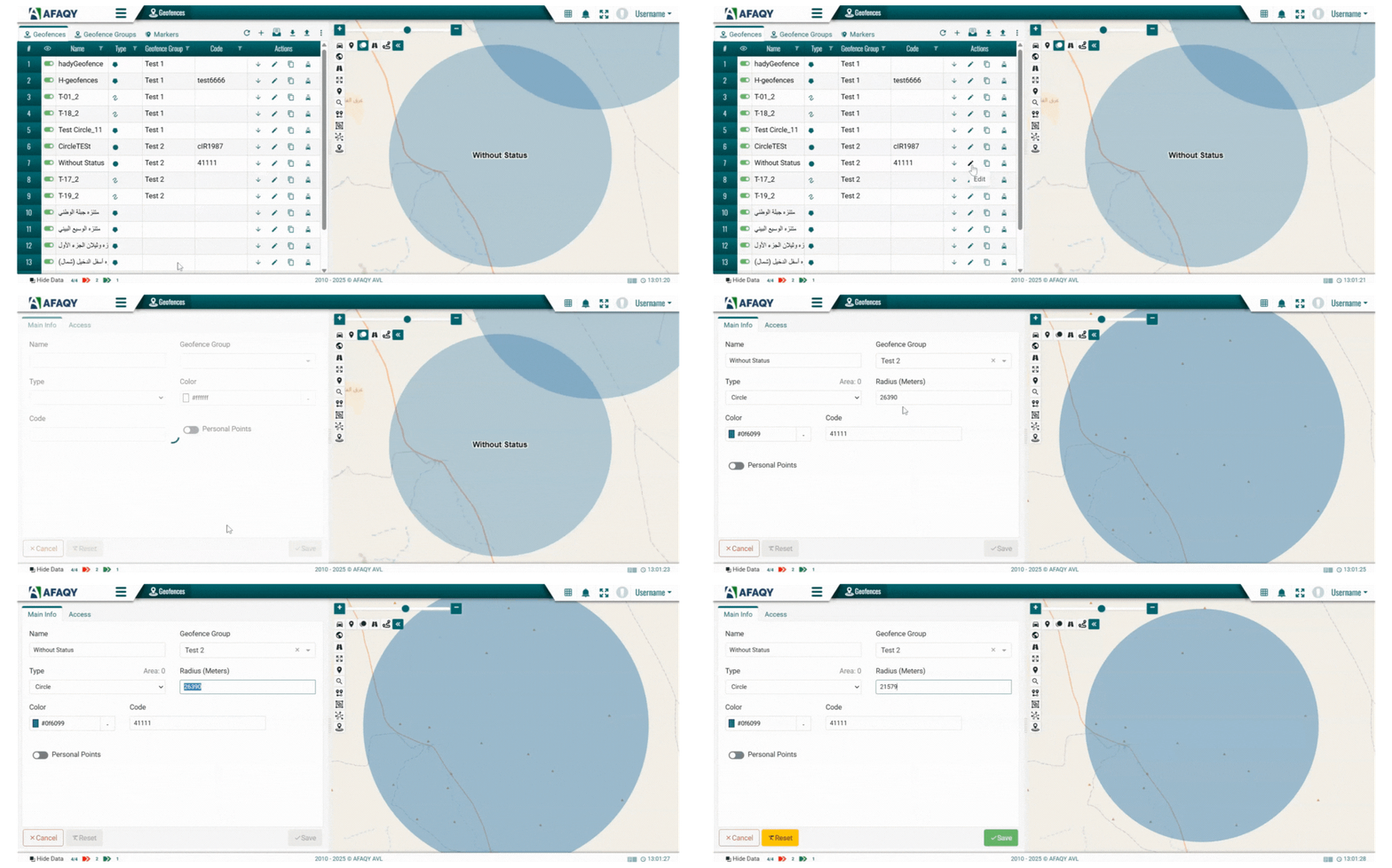
      • Edit
      • ‣
        Modify a geofence
        1. Click the Edit icon in the same row as the geofence you want to update.
        2. Make the necessary changes to the desired field(s).
        image
        1. Click Save to apply the changes.
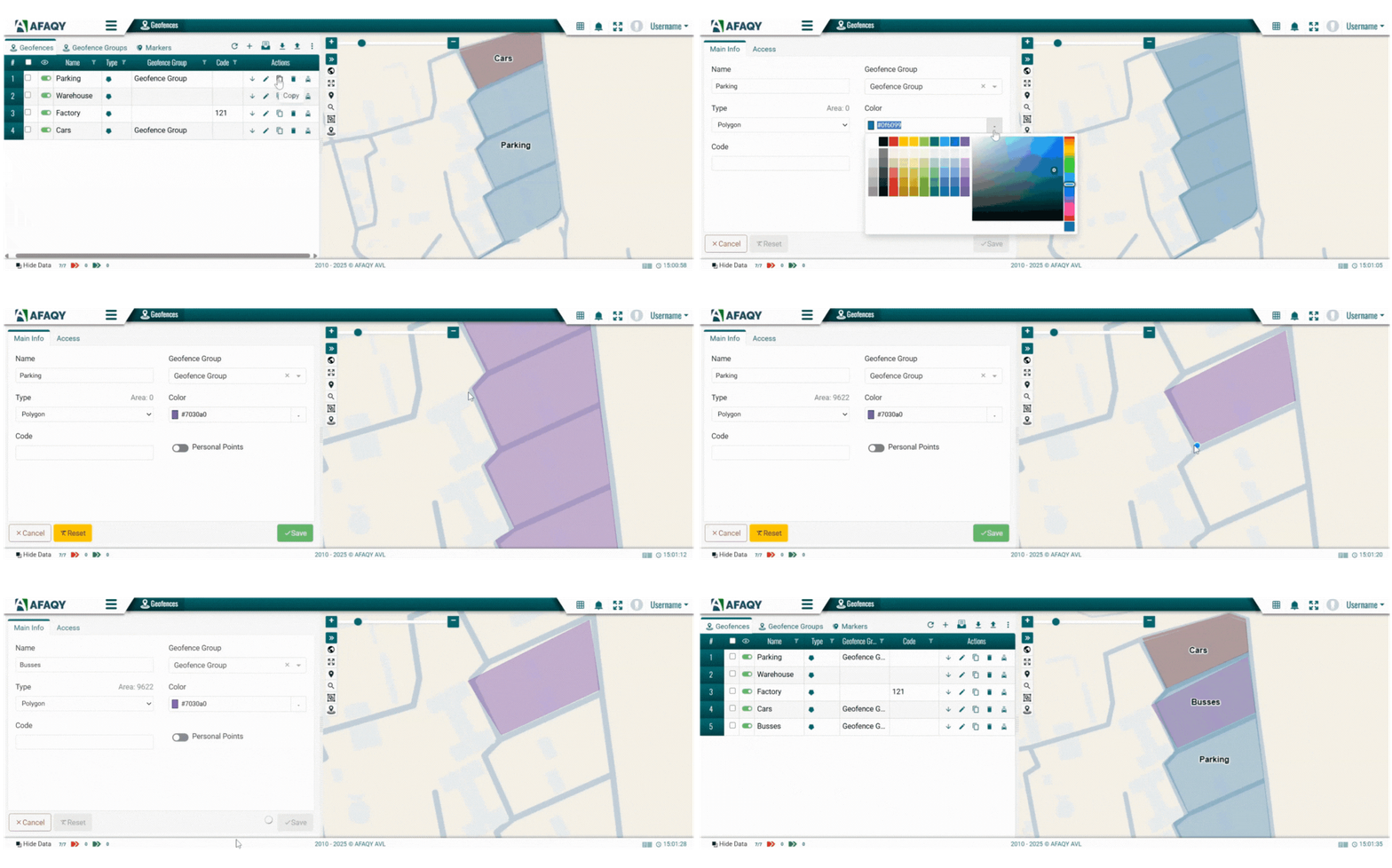
      • Copy
      • ‣
        Copy a geofence

        To create a sub-zone or a nearby geofence using the settings of an existing one, you can copy and modify it by following these steps:

        1. Click the Copy icon in the same row as the geofence you want to replicate.
        2. Rename the copied geofence.
        3. Adjust its coordinates as needed.
        4. Click Save to finalize.
        image
      • Delete
      • ‣
        Remove a geofence from the list
        • Click the Delete icon in the same row as the geofence you want to remove.
        • To restore a deleted geofence, click the List Trashed icon .
        • From there, geofences can be permanently deleted or restored using the Delete or Restore icons available in the action column of each deleted geofence.
      • Geofence Units
      • ‣
        Reveal the total number of units currently located within a geofence.
        • Clicking the Geofence Units icon opens a window that lists all units inside the geofence.
        • image
        • The list includes details such as unit name, current location, speed, status, assigned group (if available), and activity state, including whether the unit is stopped, idle, moving, or has no driver assigned.
        • You can export the list in an Excel format by selecting the Export Excel icon .

    Use this list to view, manage, and maintain your geofence database efficiently. Filters and sorting options are available for most columns to streamline navigation.

    Creating a geofence

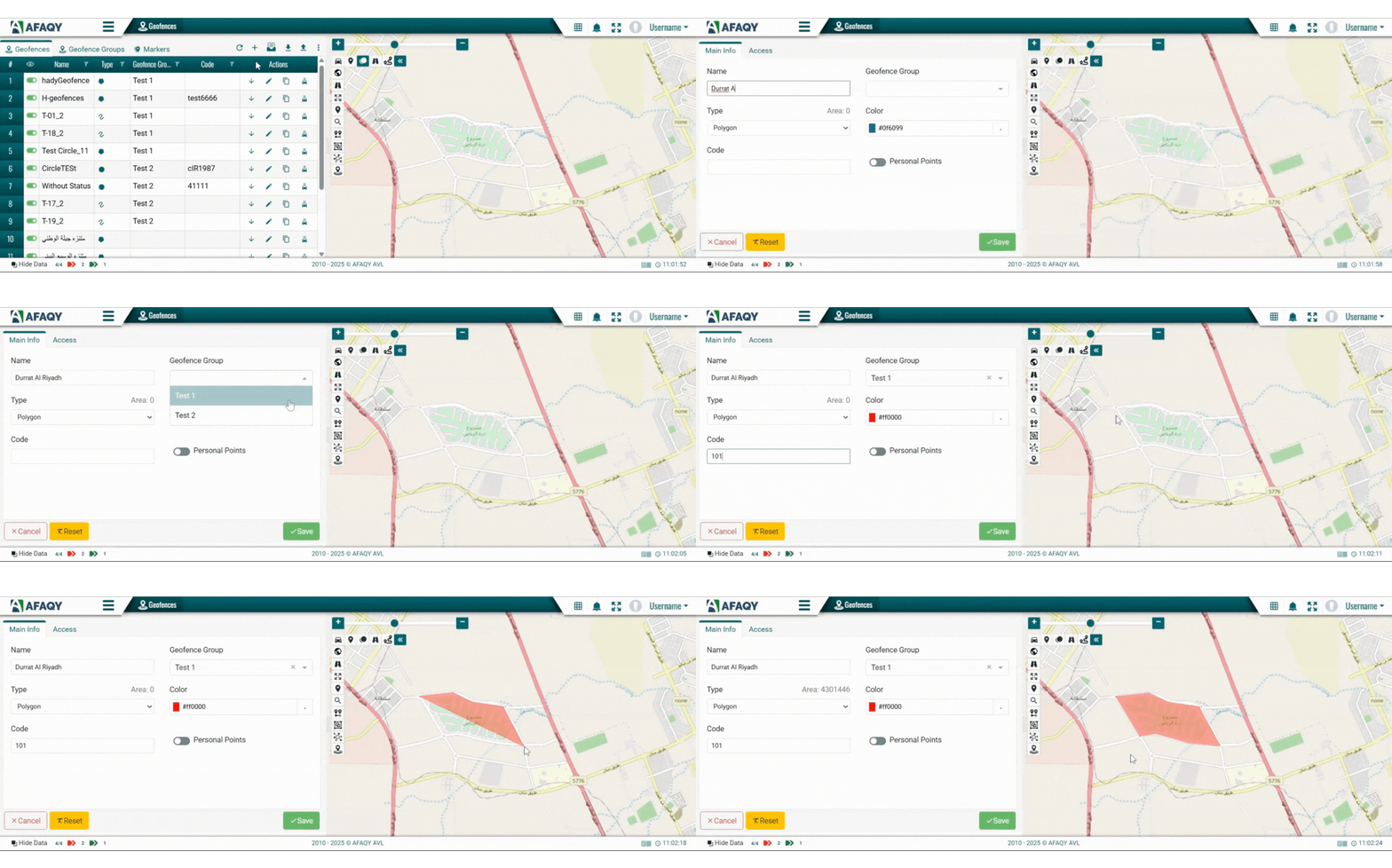
    To add a new geofence, follow these steps:

    1. Click on the + sign to add a new geofence.

    2. Enter the geofence details:

    • Name: Enter a unique name for the geofence.
    • Geofence Group: (Optional) Select the group this geofence belongs to.
    • Type: Choose the shape of the geofence — Circle, Line, or Polygon.
    • Color: Pick a color to visually distinguish the zone on the map.
    • Code: (Optional) Add a custom code for reference or integration.
    • Personal Points: Enable this option if the geofence marks a personal location, such as a driver’s home or neighborhood.

    3. Draw on the map to define the geofence area:

    • Start Drawing: Left-click on the map to begin.
    • Finish Drawing:
      • Circle: Click once more to finalize. If needed, you can manually enter the radius in meters in the Radius field for added precision.
      • Line or Polygon: Double-click to complete the shape.

    Once drawn, the system automatically calculates the area of the boundary created.
    image
    1. Switch to the Access tab to define which users can view this geofence.
    image
    1. Click Save to add the new geofence to your list. It will now appear in the geofences list and can be used in monitoring, notifications, and reports.

    Markers List

    To access the Markers List, switch to the Markers tab located next to the Geofences and Geofence Groups tabs at the top of the interface.

    image

    The Markers List displays all the location markers created in the system, organized in a table format for easy management. Each row represents a single marker and includes the following columns:

    • : The serial number of the marker in the list.
    • : Toggles the visibility of each marker on the map.
    • Name: The custom name assigned to the marker.
    • Icon: The visual icon representing the marker’s purpose (e.g., fuel station, checkpoint).
    • Actions:
      • Extra
      • ‣
        Assign / Unassign users to a marker.
        • Assigning To Users
        1. Click the Extra icon located in the specified marker's Actions field, then select the Assign To Users icon .
        2. Select the user(s) to whom you want to grant access, then press the Assign Users button.
        3. image
        • Unassigning From Users
        1. Click the Extra icon located in the specified marker's Actions field, then select the Unassign From Users icon .
        2. Select the user(s) from whom you want to remove access, then press the Unassign Users button.
        3. image
      • Edit
      • ‣
        Modify a marker
        1. Click the Edit icon to modify the marker’s name, description, or icon.
        2. Make the necessary changes to the desired field(s).
        3. Click Save to apply the changes.
      • Copy
      • ‣
        Copy a marker

        To create a marker similar to an existing one, you can copy and modify it by following these steps:

        1. Click the Copy icon in the same row as the marker you want to replicate.
        2. Rename the copied marker.
        3. Adjust its details as needed.
        4. Click Save to finalize.
      • Delete
      • ‣
        Remove a marker from the list
        • Click the Delete icon in the same row as the marker you want to remove.
        • To restore a deleted marker, click the List Trashed icon .
        • From there, makers can be permanently deleted or restored using the Delete or Restore icons available in the action column of each deleted marker.

    Use this list to view, manage, and organize map markers. Filtering and sorting features help you quickly find and update specific entries.

    Creating a marker

    To add a new marker to the map, follow these steps:

    1. Click on the + sign to add a new marker.
    2. Fill in the marker details:
      • Name: Enter a unique and descriptive name.
      • Description: (Optional) Add any relevant notes about the location.
      • Choose Icon: Select an icon that best represents the marker’s purpose.
      • image
    3. Click on the desired point on the map to place the marker.
    image
    1. Use the Access tab to assign visibility or access rights to specific users.
    image
    1. Click Save to add the marker to your list. It will now appear in the Markers tab and be displayed on the map based on its visibility status.
    icon
    Users
    icon
    Geofences Management